
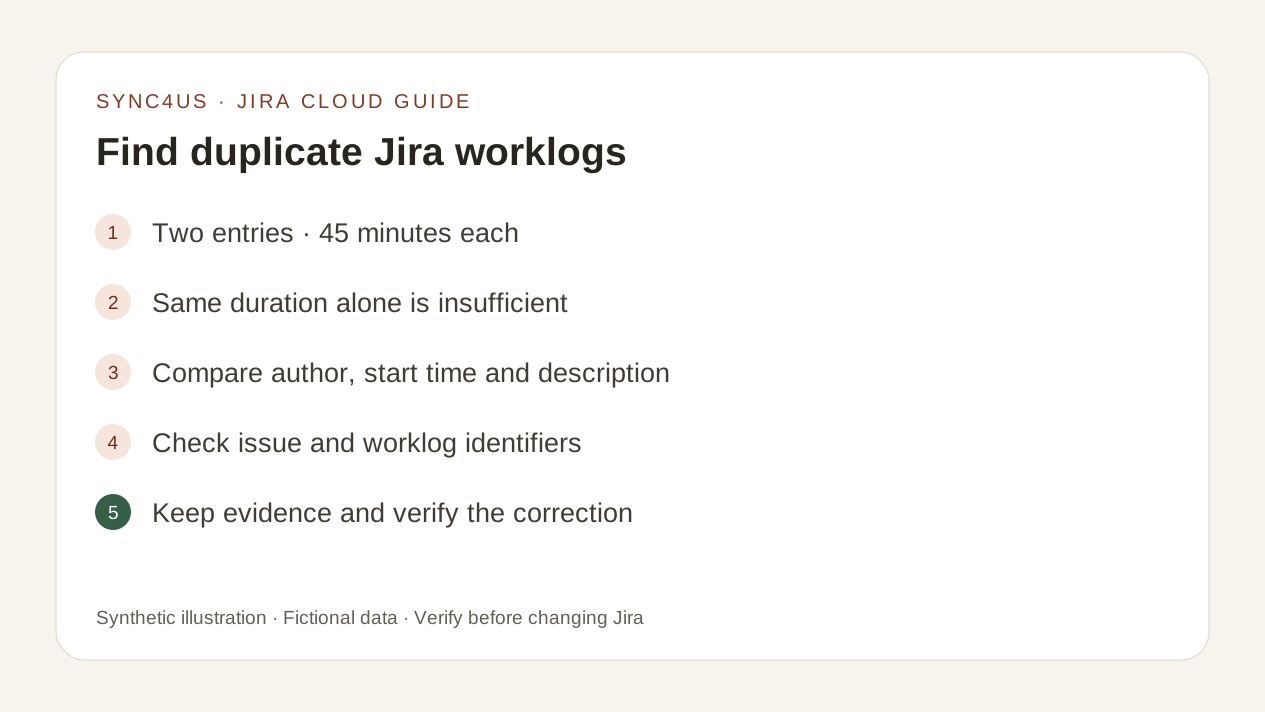
Two worklogs with the same duration are not necessarily duplicates. Compare the issue, author, start date and time, duration, description and identifier of each entry before deciding.
Quick answer
Use JQL to find issues containing work logged during the period you want to review. For example:
worklogDate >= "2026-09-21" AND worklogDate < "2026-09-28"Replace the dates with your period. The query returns issues, not a standalone list of worklogs, and does not by itself prove that two entries are duplicates. Then open Activity > Work log and compare each entry.
What “duplicate” actually means
A possible duplicate consists of two distinct entries that appear to represent the same work. Evidence is stronger when their identifiers differ but their issue, author, start time, duration and description match.
If the same identifier appears twice, there are not two distinct Jira worklogs: the same entry is being displayed more than once. If only the duration matches, the evidence is insufficient.
| Signal | What you can conclude |
|---|---|
| Same worklog identifier | The same entry, not two distinct records |
| Different identifiers with matching values in every other field | Possible duplicate with strong evidence |
| Same duration but a different start time or description | Could be two real sessions; review the context |
| Overlapping times | An inconsistency to review, but not proof of duplication |
1. Narrow the period before searching
Start with the day or week in which you suspect a double submission happened. A small interval reduces noise and makes it easier to compare results with your calendar, notes or timer.
Jira Cloud supports the worklogDate JQL field when time tracking is enabled. JQL locates issues containing work logged during the period; it does not return each worklog as a row or determine whether two entries describe the same activity.
For issues with more than 1,000 worklogs, Atlassian says worklog-related searches consider only the 1,000 most recent. For very large histories, open the issue or use an authorised export.
2. Open each issue's worklog
For each issue found, open Activity > Work log. Labels can vary by language or Jira Cloud rollout. Identify only entries for the period and author you are reviewing.
Do not confuse timeSpent with a list of worklogs: that field represents the issue's accumulated total time. Do not use the assignee as a substitute for the worklog author either.
3. Compare entries field by field
Write down or compare side by side:
- issue key;
- author;
- start date and time;
- duration;
- description or comment;
- worklog identifier, if your view or integration shows it.
The identifier prevents you from confusing an entry displayed twice with two different worklogs. The other fields together help determine whether two different identifiers really describe the same work.
4. Distinguish a double submission from two real sessions
It is 17:55 and an issue shows two 45-minute entries. Deleting one may look like a quick fix, but duration alone is not enough. One session could be meeting preparation and the other follow-up.
Suspicion increases if both entries share the same author, start time, duration and an equivalent description. If the time, specific task or stated outcome differs, keep the question open until you have checked the real context.
This pause prevents the most costly review mistake: deleting valid work to correct something that only looked repeated.
5. Keep evidence before correcting
Before editing or deleting:
- keep the identifiers and values you compared;
- confirm which entry reflects the actual work;
- check whether an integration may have submitted the same operation again;
- review the effect on the issue's remaining time.
Do not log the work again before verifying the correction. Creating a new entry first can turn uncertainty into a real duplicate.
6. Delete only the confirmed duplicate and verify
Jira requires specific permissions to edit or delete your own or other people's worklogs. If the required action is missing, ask an administrator to review the permission scheme.
After deleting the confirmed duplicate, reopen Work log and check:
- that the correct entry remains;
- that the time total is as expected;
- that the remaining estimate is coherent;
- that you have not left a gap or removed a separate session.
To complete the correction, follow the guide to edit or delete a worklog in Jira Cloud.
Decision checklist
- I narrowed the period I want to review.
- I opened the actual worklogs rather than relying only on JQL results.
- I compared issue, author, start time, duration and description.
- I checked identifiers where available.
- I did not treat equal duration as sufficient proof.
- I kept evidence before editing or deleting.
- I verified the remaining worklog, total and estimate after the change.
Where Sync4us fits
Sync4us brings the day together so you can review blocks, possible duplicates, overlaps and Jira associations before preparing changes. An alert points to something worth reviewing; it does not by itself prove that two worklogs describe the same work or delete entries automatically.
You review the preview and explicitly confirm any write to Jira. Sync4us can be used with Jira alone; Clockify is optional.
The current version is a free beta for Windows. Verify your email and activate your personal workspace automatically while places are available.
Frequently asked questions
Can JQL show duplicate worklogs directly?
No. worklogDate locates issues with work logged during a period. You must open and compare the actual entries or use an authorised integration that reads their fields.
Are two entries with the same duration duplicates?
Not necessarily. They may represent two real sessions. Also compare author, start time, description, issue and identifier.
Does an overlap prove duplication?
No. It is an inconsistency worth reviewing, but it could result from an incorrect start time or two different activities logged with incompatible intervals.
Why can't I delete one of the entries?
Jira separates permissions for editing and deleting your own and other people's worklogs. Ask an administrator to review the issue's permission scheme.
Do I need Clockify for this check?
No. You can review worklogs directly in Jira. Clockify or another timer provides an additional reference only when it is already part of your workflow.
Official sources
- JQL fields, including worklogDate — Atlassian Support
- Log, edit and delete time on a work item — Atlassian Support
- Time tracking permissions — Atlassian Support
- Jira Cloud worklog REST API — Atlassian Developer
The original guide's sources were reviewed on 23 September 2026. Interface labels and terminology may vary during Jira Cloud's gradual rollout.