
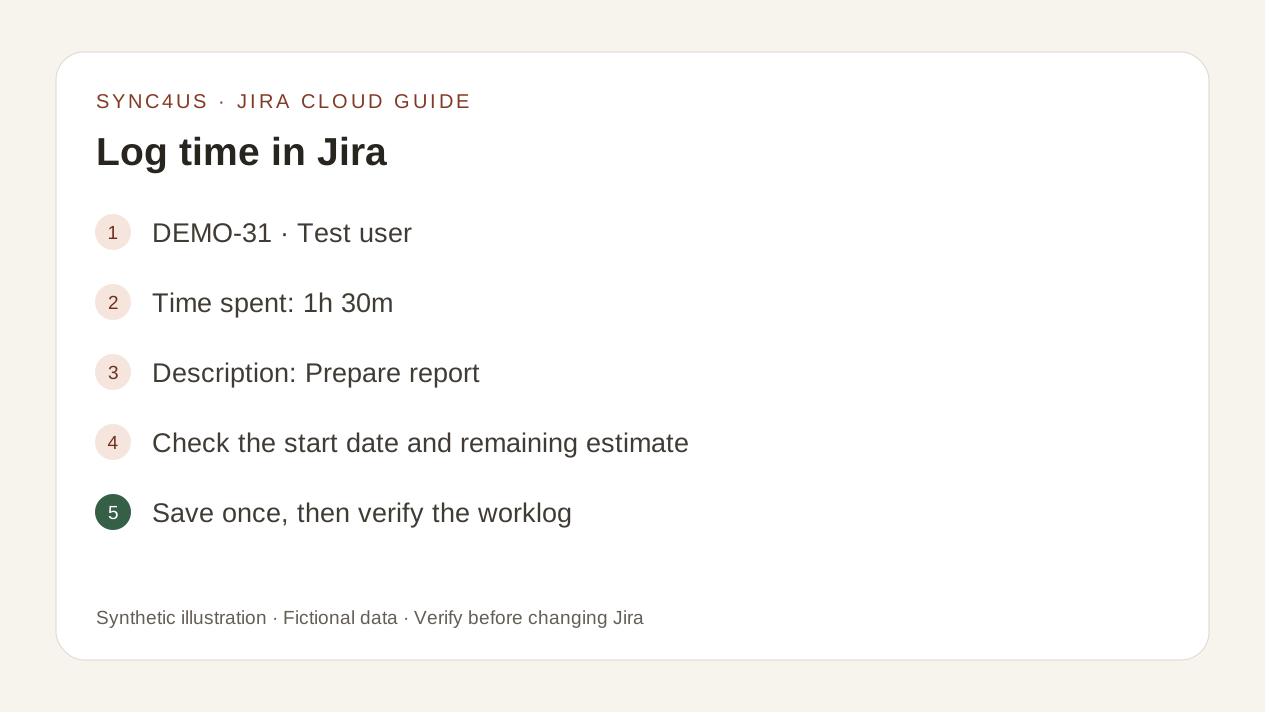
Open the correct issue and select More actions > Log work or the time tracking field. Check time spent, the start date and time, the description and, if shown, how the remaining estimate will be handled. Save once and verify the entry in Activity > Work log.
This guide covers creating a new worklog only. To reconstruct your day first, start with reviewing today's hours. If an entry already exists and is wrong, see how to edit or delete a worklog.
Before you start: access, permission and a visible field
Jira Cloud documentation says you need access to the space and the Work on work items permission to log time. Time tracking is available in Jira Cloud, but the field may be hidden or absent from the issue type.
Check:
- that you can open the issue;
- that Log work or the time tracking field is visible;
- that you have Work on work items;
- that you know your team's rules for duration, description and estimates.
If something is missing, ask an administrator to check the configuration or permission scheme. Do not try to bypass it.
1. Choose the correct issue
Check the key, summary, project or space, and the context of the work. Do not rely on the first search result: two issues may have similar names.
If the work belongs to several issues, do not invent an allocation just to reach a total. First decide which part belongs to each issue, following your team's approach.
2. Open the logging form
In Jira Cloud, open the issue and select More actions > Log work. You can also use the time tracking field when it is visible.
A missing button does not by itself prove a browser fault. It may depend on permissions, the issue type, field configuration or a third-party time tracking provider.
3. Complete each field deliberately
- Time spent: use the actual duration and an explicit unit.
- Start date and time: enter when the work happened, rather than accepting the current time by default.
- Description: include the detail required by your team's rules.
- Remaining estimate: check how much work is actually left if the interface asks you to adjust it.
Jira accepts weeks (w), days (d), hours (h) and minutes (m). A number without a unit uses the default unit configured by the administrator. To avoid ambiguity, use expressions such as 1h 30m.
Synthetic example: fictional issue DEMO-31, test user, time spent 1h 30m, description Prepare report. Use the real start date for your own work. This example contains no real account data and does not prescribe a remaining estimate.
4. Keep time spent and remaining estimate distinct
Time spent describes work already done. The remaining estimate describes how much work you think is left. They are different values, and a correct duration does not guarantee that the resulting estimate is correct.
The available options depend on configuration. If Jira proposes an adjustment, check its effect and follow the team's rule. Do not change the value just to make a bar or total appear to match.
5. Save once, then verify
Read everything one last time before saving. After saving, open Activity > Work log and locate the entry by author, date, start time, duration and description.
The absence of an error message is not enough to verify success. If the connection is slow or you are unsure whether it saved, check the worklog before trying again: a second submission can create a duplicate.
Checklist before and after logging
- The key and summary match the work performed.
- The duration includes a clear unit.
- The start date and time are correct.
- The description follows the team's rules.
- The remaining estimate represents work still to do.
- You saved only once.
- The entry appears in Activity > Work log with the expected values.
Common mistakes
Choosing a similar issue
A similar key or summary can hide a different project or context.
Omitting the unit
A bare number uses the site's default unit and may not mean what you expected.
Accepting today's date by default
Logging yesterday's work with today's date distorts the daily view even when the duration is correct.
Ignoring the estimate
The worklog may be right while the remaining time no longer reflects unfinished work.
Trying again because the response is slow
Check the activity before saving again so that you do not create two entries.
Logging without reviewing the whole day
An individual entry can duplicate time already logged under another description.
Where Sync4us fits
Sync4us organises the day into blocks and lets you prepare the Jira destination before writing anything. The preview shows what will be logged; submission runs only after explicit confirmation.
Clockify can supply records as an optional source. You can also create and review your day directly in Sync4us.
Sync4us is a free beta for Windows. Verify your email and activate your personal workspace automatically while places are available.
Frequently asked questions
Do I need to be an administrator to log time?
Not necessarily. You need access to the issue and the Work on work items permission. An administrator can review the scheme if the action is missing.
What does entering only 2 as the duration mean?
Jira uses the site's configured default unit. It is clearer to enter 2h or the appropriate unit.
Should I always change the remaining estimate?
No. It should reflect the work left to do and the team's rules. Review any adjustment proposed by the interface.
Where do I check that the worklog was saved?
In the issue's activity, select Work log. Check the author, date, start time, duration and description.
What should I do if I logged an entry incorrectly?
Do not simply create another one. Identify the worklog first, then follow the guide to edit or delete it as appropriate.
Official sources
- Log time on a work item — Atlassian Support
- Time tracking permissions — Atlassian Support
- Configure time tracking — Atlassian Support
- Configure estimation and tracking — Atlassian Support
The original guide's sources were reviewed on 10 September 2026. This guide covers Jira Cloud and does not assume a particular organisation's configuration, permissions or rules. Interface labels and paths may vary by language, configuration and rollout.