
Quick answer
Open Jira Cloud's advanced search and run:
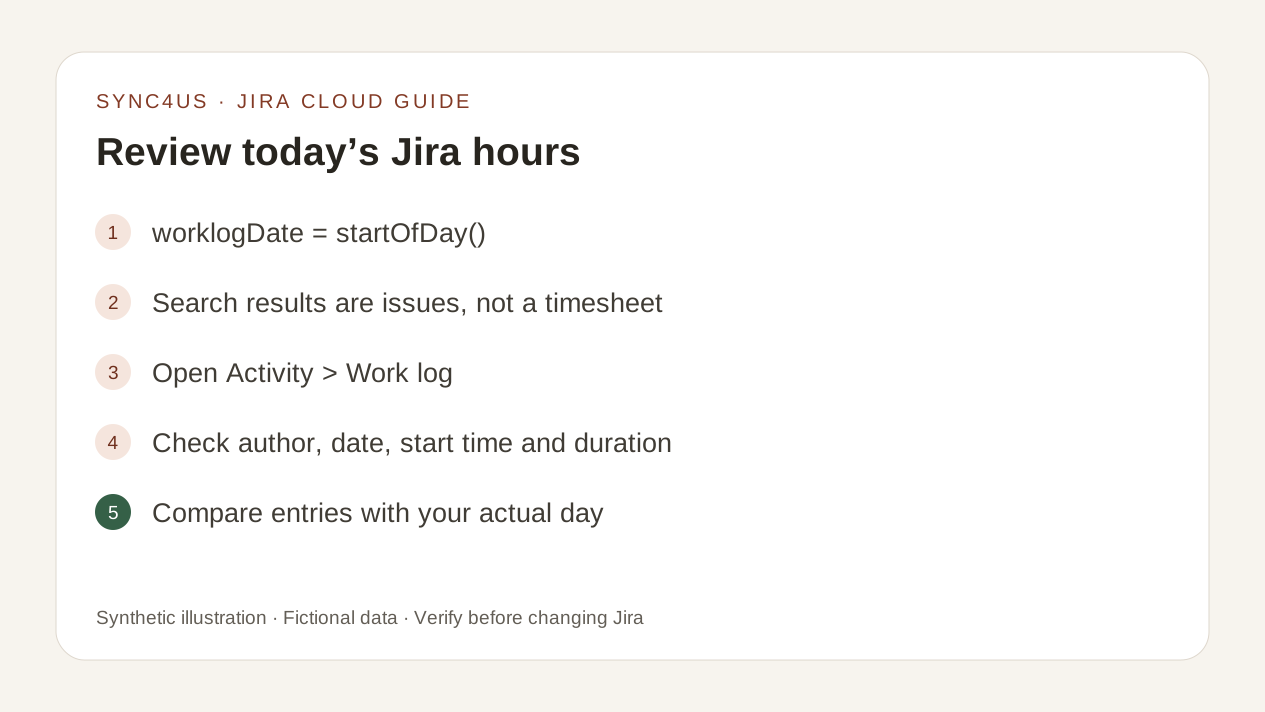
worklogDate = startOfDay()The query returns issues containing at least one worklog from today, not a personal daily timesheet. Then open Activity > Work log and check author, date, start time and duration.
What to check
A day can add up to the expected number of hours and still contain mistakes. Review four things:
- Coverage: no relevant periods of work are missing.
- Issue: each entry belongs to the correct task.
- Duration: the time is reasonable and is not duplicated.
- Comment: it explains what happened according to your team's rules.
1. Gather references for your day
Before opening Jira, think about where the day's work came from: calendar meetings, issues, messages or notes, focus blocks and, if you use one, a timer such as Clockify.
You do not need another application for this review. Additional sources help you remember; they do not replace your judgement.
2. Find today's work with JQL
In Jira Cloud, open advanced search, switch to JQL mode and run worklogDate = startOfDay().
worklogDate finds issues where someone logged work today. The query does not restrict results to your own entries and does not directly produce your daily total.
| JQL can | JQL does not guarantee |
|---|---|
| Locate issues with work logged today | Show only your entries |
| Find where to review | Directly calculate your daily total |
| Reduce the set of issues | That the visible accumulated time belongs only to today |
When an issue has more than 1,000 worklogs, some worklog searches consider only the 1,000 most recent. This limit matters for very large histories.
3. Check each worklog
Open each issue found and locate Work log, Registro de trabajo or Log work, depending on the interface language. For each of your entries from today, verify:
- the issue key;
- author and date;
- start time and duration;
- comment;
- the running total you have reviewed.
Interface labels and paths can vary by language, configuration, edition or Jira Cloud rollout.
4. Compare Jira with what actually happened
Compare the worklogs with the references from step one. Check for a missing meeting or issue, two entries covering the same work, unreasonable durations and comments that explain the outcome.
If two entries seem to describe the same activity, do not decide based only on duration. Use the guide to find duplicate Jira worklogs and compare their fields before deleting anything.
If you use a timer, review its data before copying it. A timer that kept running during a break does not automatically produce a correct worklog.
5. Correct mistakes with context
Jira lets you edit or delete entries if you have the corresponding permissions. Before saving a correction, also check the remaining time: changing an entry may require adjusting that estimate. If the required options are missing, ask an administrator to check your permissions.
Once you have identified the exact entry, follow the guide to edit or delete a Jira Cloud worklog and verify the remaining estimate.
6. Check before adding missing work
Before creating a worklog, look at existing entries again. Avoid duplicating work already logged with another comment or against a related task. When you are sure, follow the guide to log time in Jira without mistakes, choose the appropriate issue and verify the result after saving.
Daily checklist
- I found the issues with today's worklogs.
- I checked each entry's date, author and duration.
- I compared Jira with my calendar, notes or timer.
- No relevant periods remain unlogged.
- There are no duplicates or suspicious durations.
- Each entry belongs to the correct issue.
- Comments follow my team's rules.
- I reviewed the result before adding or correcting data.
Where Sync4us fits
Sync4us helps you bring together the day's work and review entries. When they are ready, you can prepare the submission and explicitly confirm what is written to Jira. You can use it with Jira alone; Clockify is optional.
The current version is a free beta for Windows. Verify your email and activate your personal workspace automatically while places are available.
Frequently asked questions
Does Jira show all my daily hours in one view?
Advanced search finds related issues, but you must check the individual entries to confirm author, date and duration. Additional reports depend on your organisation's configuration.
Do I need Clockify to review my hours?
No. You can review and log time directly in Jira. A timer is just an additional reference.
Why can't I edit or delete a worklog?
This can depend on permissions for modifying your own or other people's entries. Ask an administrator to check the project's permission scheme.
Is it enough for the total to match my working day?
Not always. A duration, issue or comment can be wrong even when the final total matches.
At the end of the week
For a review across several days, use the weekly Jira worklog checklist.
Official sources
- Log, edit and delete time on a work item — Atlassian Support
- Advanced search in Jira Cloud — Atlassian Support
- JQL fields, including worklogDate — Atlassian Support
- Time tracking permissions — Atlassian Support
The original source review was on 1 September 2026. The documentation reviewed described worklogDate and startOfDay() but did not list worklogAuthor; the original guide therefore did not recommend that field for Jira Cloud. This translation preserves that scope.