
At the end of the week, several different questions may remain: a missing meeting, two similar sessions and an hour logged against an overly broad issue. Reviewing them separately helps identify the correction or clarification each one needs.
1. Define the period and the author
Write down the first date and the first date outside the period. If reviewing before Friday, include only days already elapsed. Use a consistent time-zone convention across your references and Jira.
Use the work actually performed as your reference. Breaks, holidays, leave and shorter days are not gaps to fill with invented work. This guide does not establish required hours or billing rules.
2. Find the issues and open their worklogs
Atlassian’s documentation supports finding issues with work logged within a date range. This example covers Monday 28 September to Friday 2 October 2026:
worklogDate >= "2026-09-28" AND worklogDate < "2026-10-03"JQL returns issues. Open Activity > Work log and check the author, start date and duration of individual entries. An issue’s accumulated time may include other authors and periods.
For an issue with more than 1,000 worklogs, related JQL searches consider only the most recent entries. Use its view or an authorised export for older entries. Permissions can also limit what you see.
3. Compare each day with its references
Bring together your calendar, notes and the tasks you worked on. Clockify is an optional reference if you use it. A calendar meeting provides context: confirm it happened, what work it represents and the appropriate issue.
Check coverage, issue, start, duration and description. A matching total can conceal missing work offset by a duplicate. For similar entries, compare their fields before deleting.
A fictional week: three different decisions
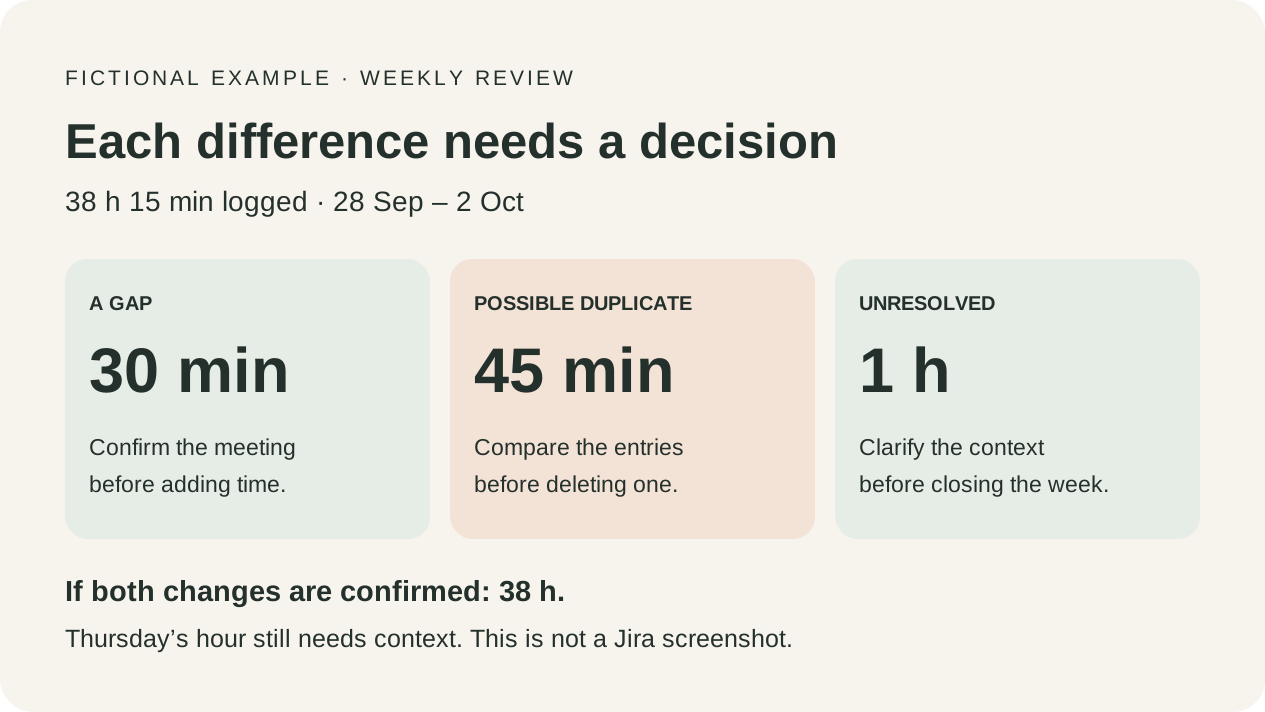
This table is a review list, not an instruction to make automatic corrections. Six hours were actually worked on Friday; that day does not need to reach eight.
| Day | Logged | Finding | Decision after checking |
|---|---|---|---|
| Monday 28 | 8 h | No difference in the example | Keep the verified entries |
| Tuesday 29 | 7 h 30 min | A missing 30-minute meeting | Add only after confirming it happened and is not already logged |
| Wednesday 30 | 8 h 45 min | Two 45-minute entries for the same work | Remove one only after confirming a duplicate |
| Thursday 1 | 8 h | 1 h with insufficient context | Keep unresolved until the issue or description is clarified |
| Friday 2 | 6 h | Actual six-hour day | Keep it; do not fill up to eight by habit |
The initial total is 38 h 15 min. If the meeting and duplicate are confirmed, adding 30 minutes and removing 45 gives 38 h. Thursday’s hour was already included in both totals and still needs clarification. The example is not ready to close yet.
4. Correct with evidence and verify the result
Before adding time, check it is not already logged. Editing or deleting requires permissions for your own or other people’s worklogs. Ask the administrator if an action is unavailable. The correction guide explains the process.
After saving, read the entries and period total again. Check the issue’s remaining estimate if your team uses it; this is different from your personal weekly total. Retain a reference to the change.
A reusable weekly checklist
- I have defined the dates, author and time-zone convention.
- I have opened the individual entries and checked permissions and scope.
- I have compared each day with references for work actually performed.
- I have checked issue, start, duration and description.
- I have verified possible duplicates before correcting them.
- I have read Jira again after saving each change.
- I have separated unresolved questions and recorded what is needed to resolve them.
- I have closed the week only once differences are verified or documented according to the team’s process.
5. Leave a short list of unresolved questions
For each question, record the day, issue, affected time, available evidence and next check. For example: “Thursday: 1 h logged; confirm whether it belongs to support or the project before editing.”
Follow your team’s process and make unresolved status visible. Do not adjust durations merely to make a total fit. For a more detailed daily review, see how to review today’s Jira hours.
WHERE SYNC4US FITS
Review together before confirming changes
Sync4us brings together workday blocks and Jira worklogs to support review before preparing changes. Clockify is optional. Every Jira write requires the user’s explicit review and confirmation.
Frequently asked questions
Can JQL alone give me my personal weekly total?
The search finds issues. Check individual entries for the author and period or use an authorised tool that reads them with that scope.
Should every calendar meeting become a worklog?
Confirm it happened and should be logged according to your team’s process. A calendar provides context, not automatic justification for writing to Jira.
When can I close the week?
Once differences have been reviewed, corrections verified and any exception documented with its next step according to your team’s process.
Sources and scope
- JQL fields — Atlassian Support
- Log, edit and delete work — Atlassian Support
- Time tracking permissions — Atlassian Support
Official sources reviewed on 8 October 2026. The checklist and fictional week are original editorial proposals. This guide covers Jira Cloud; labels and options depend on language, permissions and configuration.